Home » Avancir Print
Create, format, and print barcode and RFID labels using spreadsheet-driven data and compatible printers. Build reusable label templates, import data from Excel or CSV files, print individual labels or full batches, and add RFID and GS1 encoding capabilities when your workflow requires them.
One Printing Application
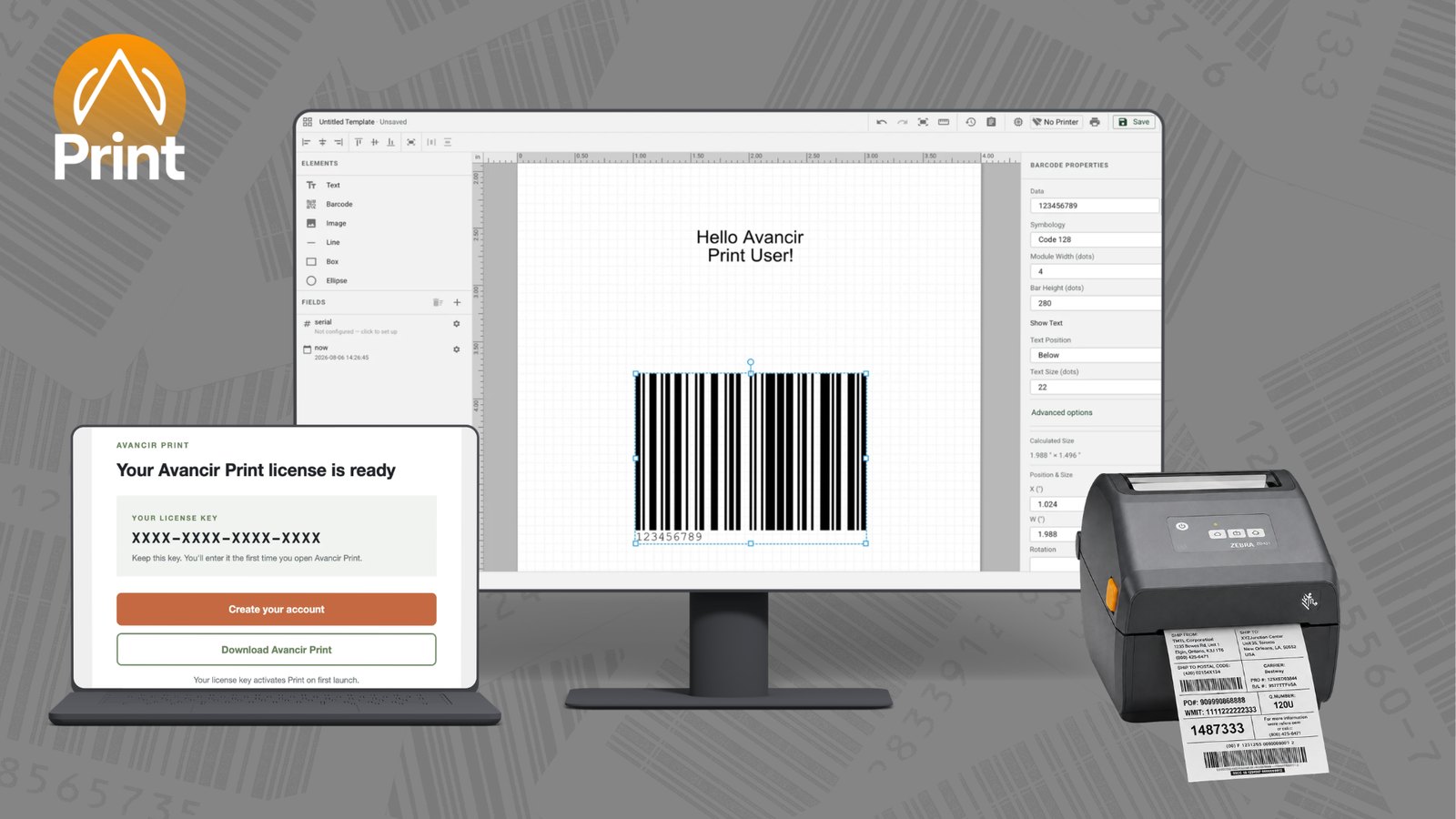
Avancir Print is a desktop label design and printing application built for teams that need a straightforward way to create labels, connect data, and print from compatible printers.
A one-year subscription includes the core tools for barcode, QR code, and standard label printing. RFID and GS1 capabilities can be added when encoding is required.
Licensing is based on the number of computers running Avancir Print rather than the number of printers. Each licensed workstation can connect to unlimited compatible printers.
Key Features
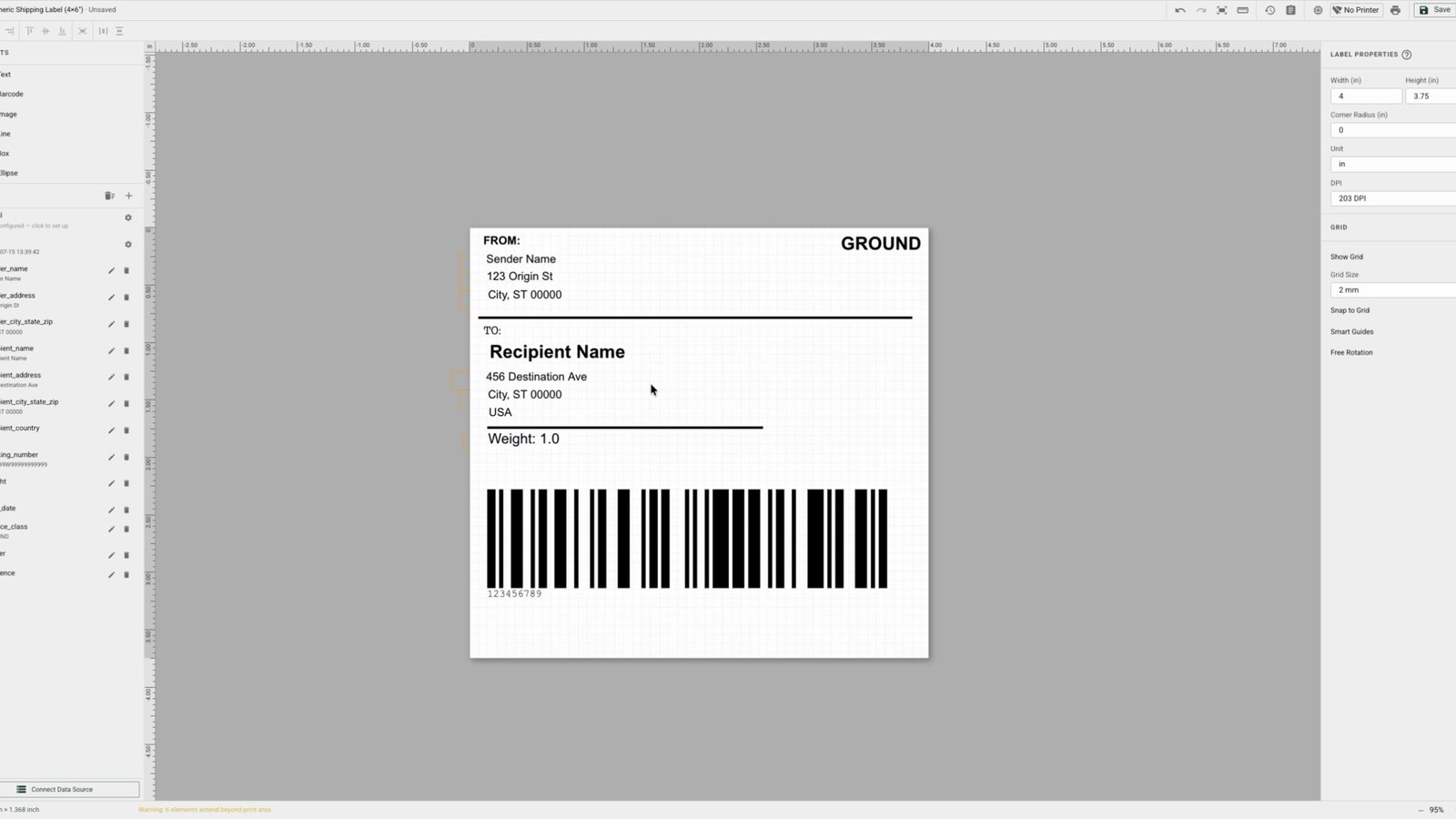
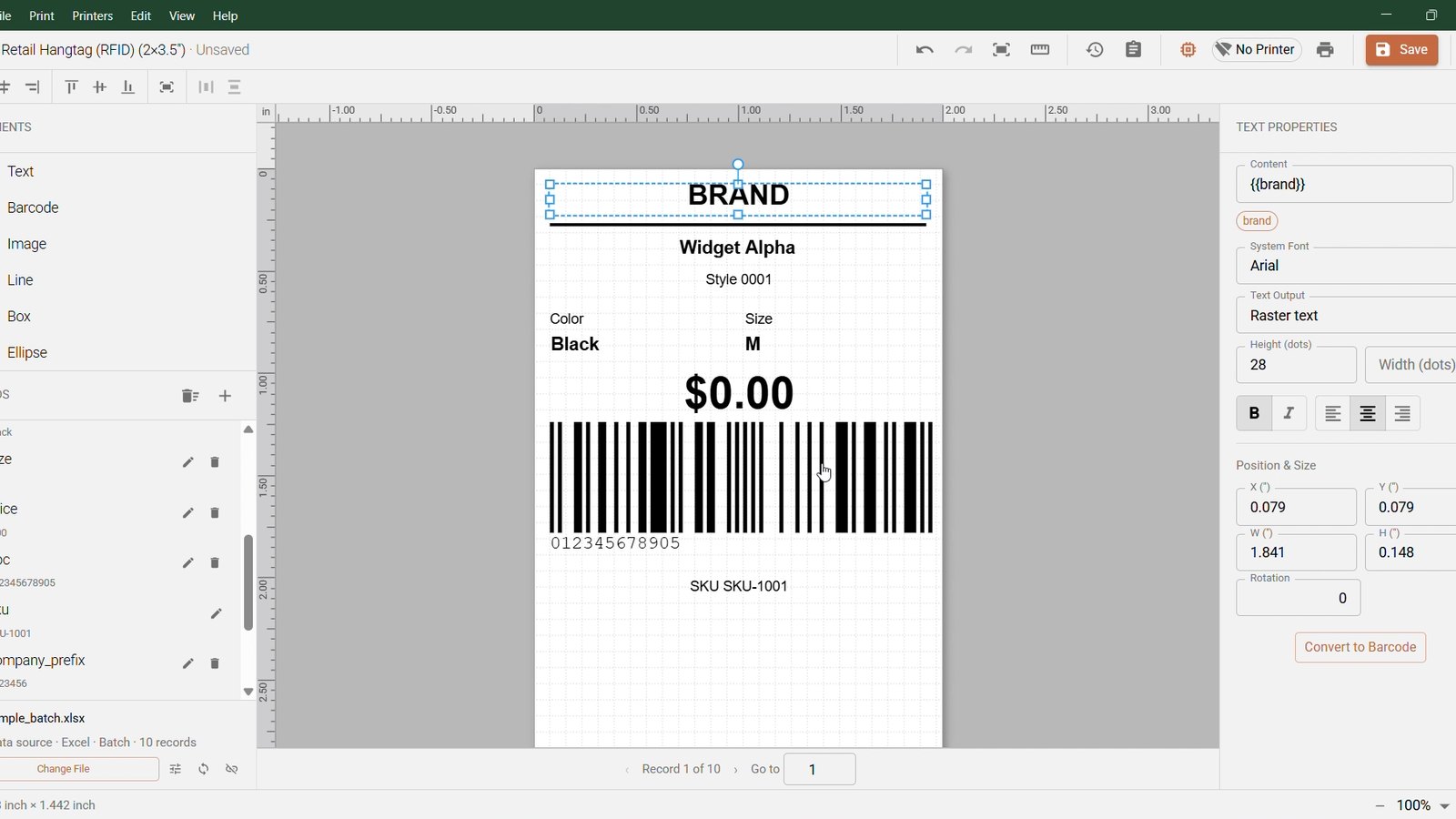
Design labels on a canvas that reflects the final printed output, with control over label dimensions, DPI, orientation, and units.
Add text, barcodes, QR codes, images, lines, boxes, ellipses, and other elements with control over placement, fonts, colors, and styling.
Create variable text, number, and date fields with validation, transformations, and live preview before data reaches the printer.
Create reusable label templates, organize frequently used designs, and start from presets for repeat printing workflows.
Import spreadsheet data and map columns directly to label fields to reduce manual data entry and simplify batch printing.
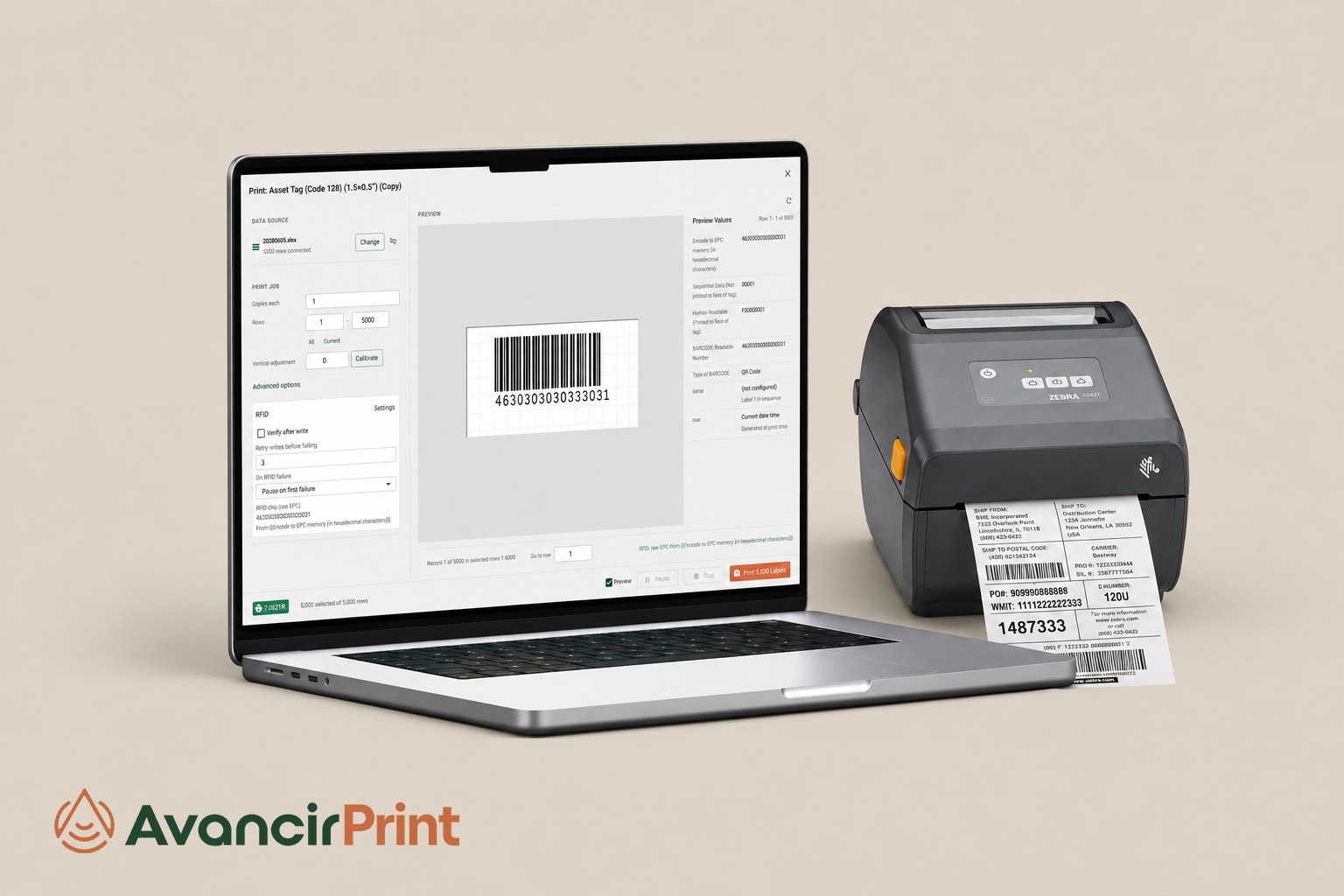
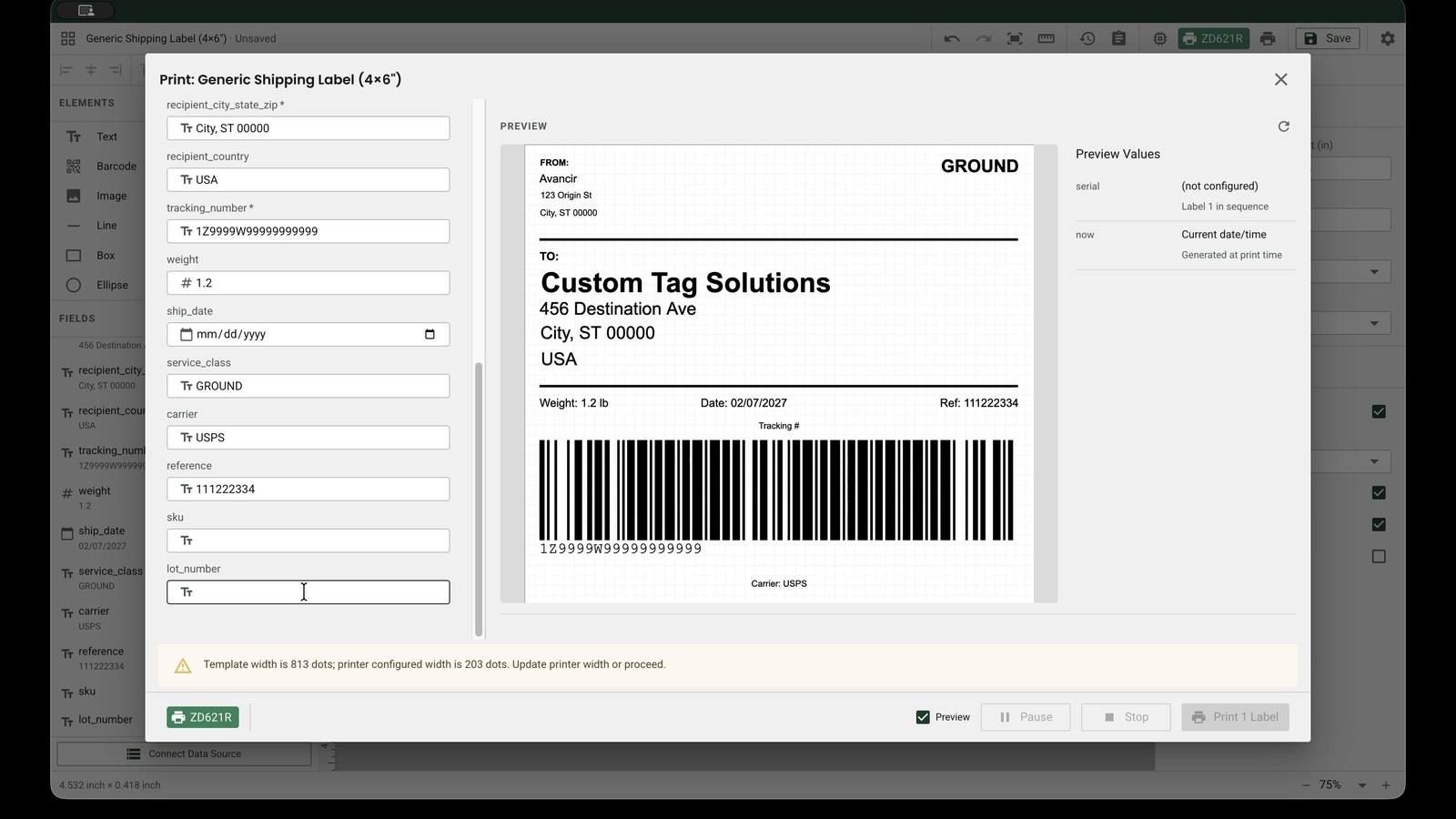
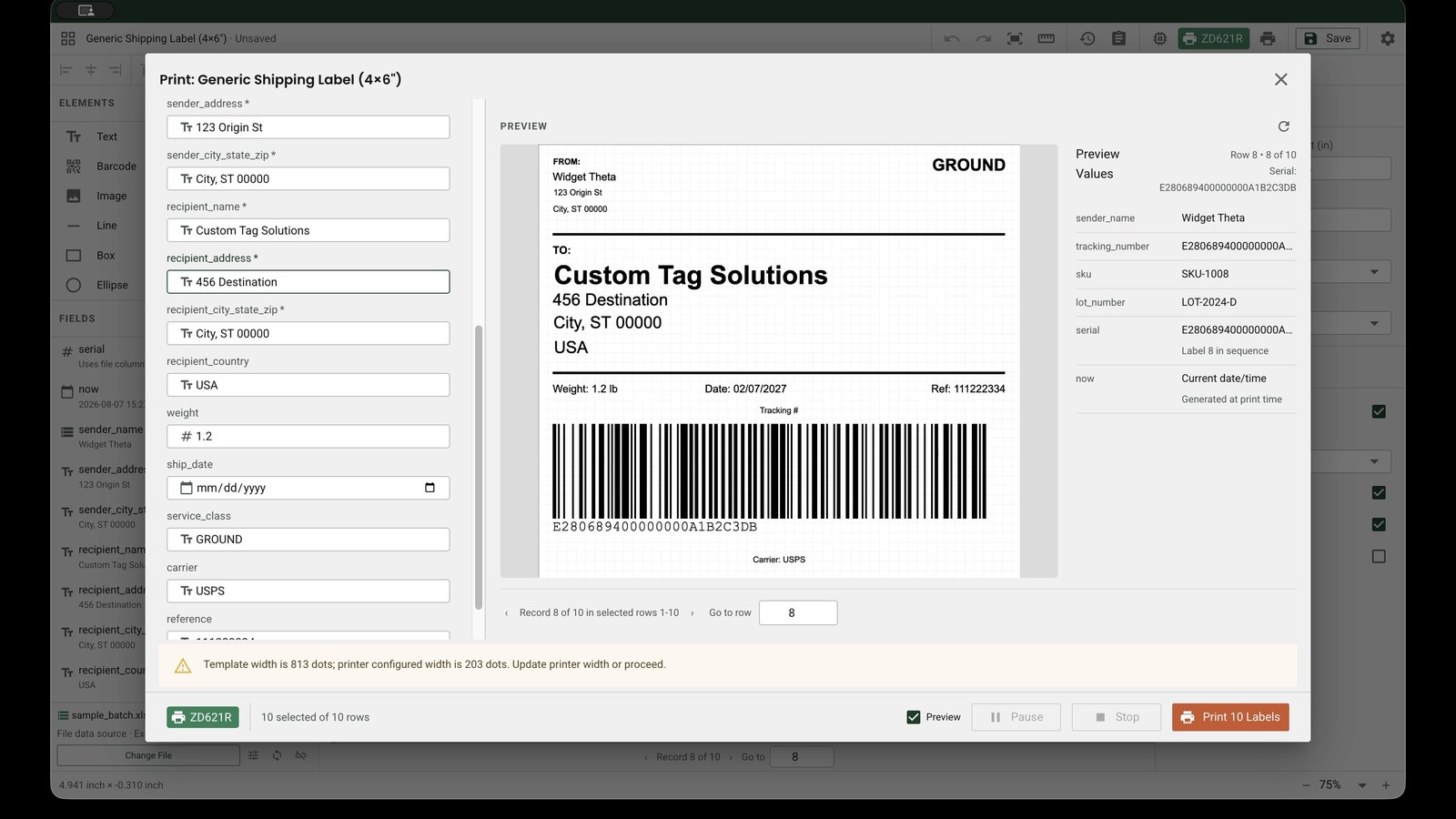
Print one label or work through large spreadsheet-driven batches with row selection, per-label copy quantities, print progress, and job controls.
Create labels that require sequential numbering, serialized identifiers, or structured item-level information.
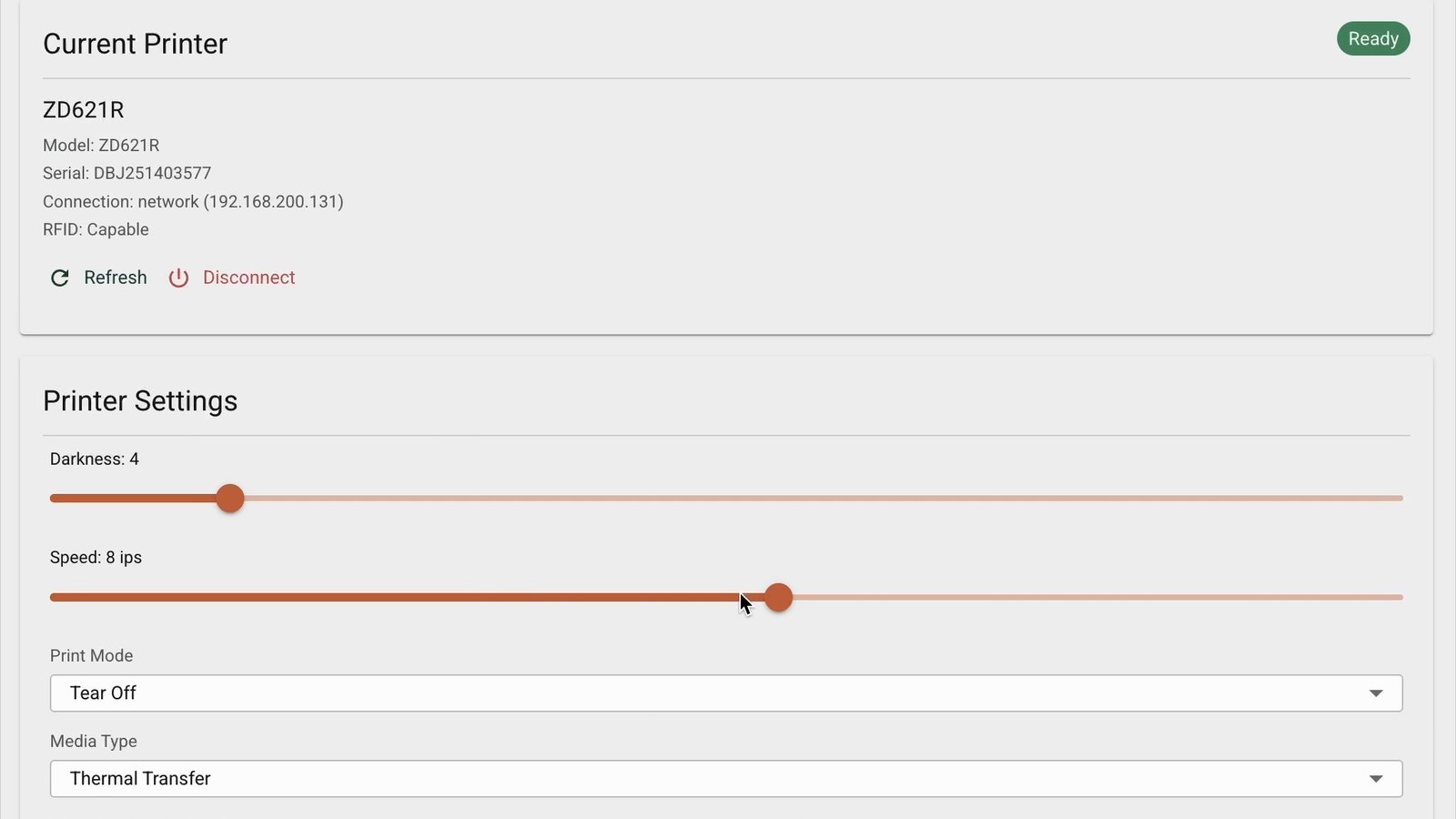
Manage settings such as print speed, darkness, copies, and label configuration directly within the application.
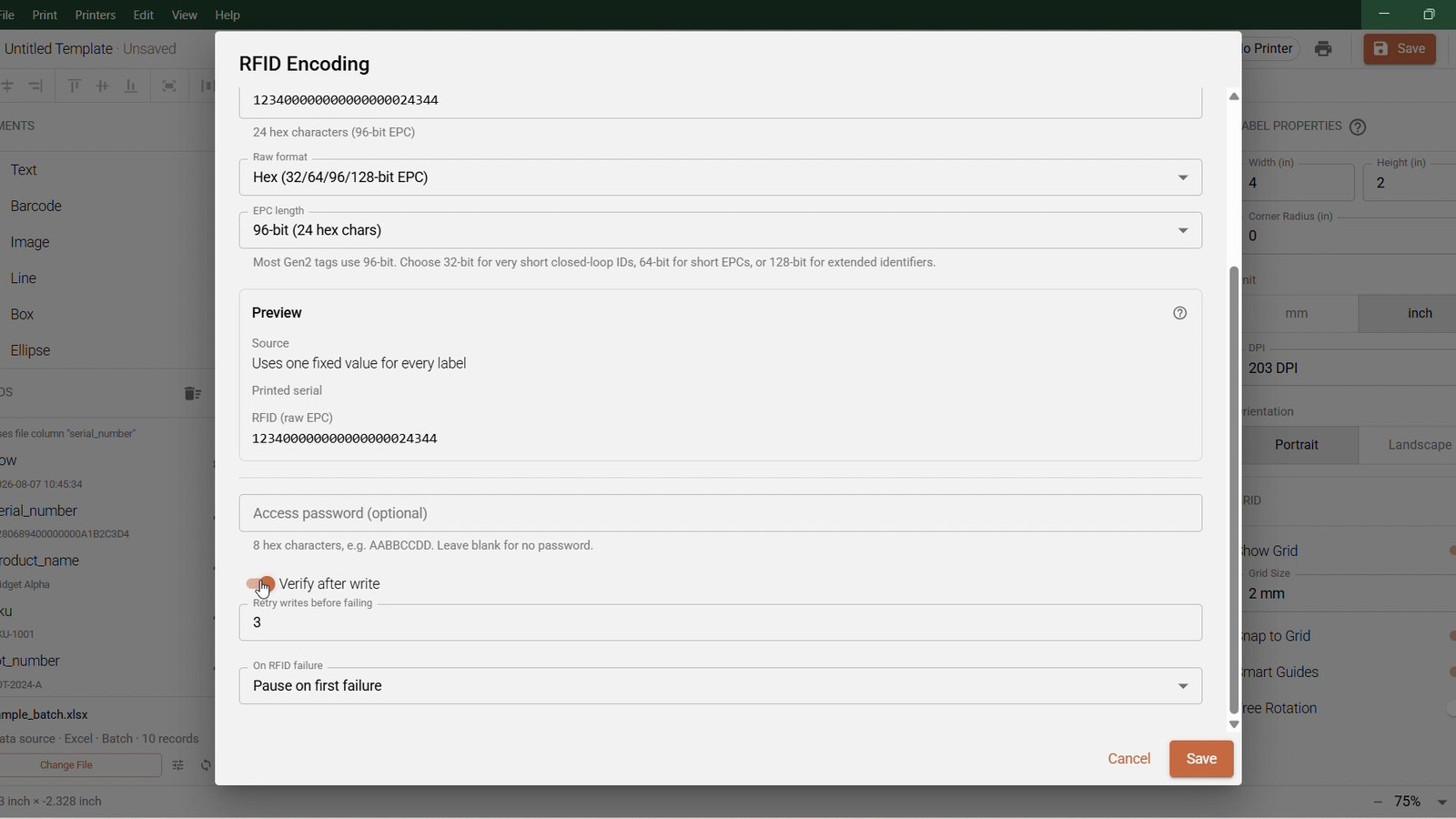
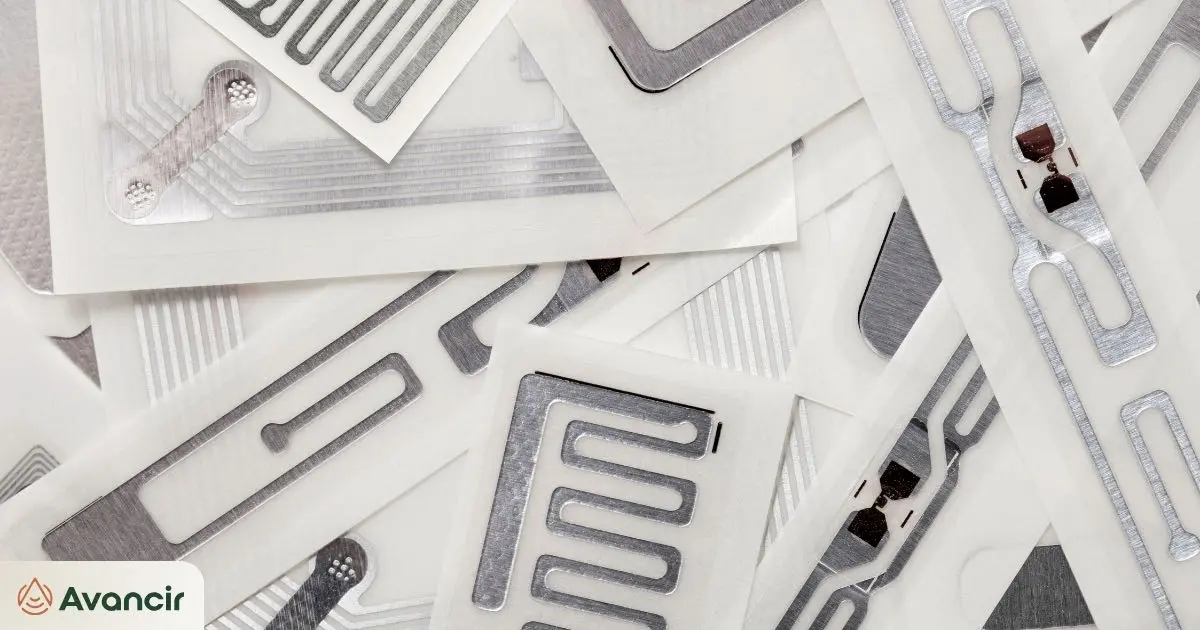
Add RFID Capabilities when your workflow requires RFID or GS1 data to be encoded alongside printed label information.
See It In Action
Short walkthroughs of the designer, data import, printing and RFID encoding, recorded in the application.
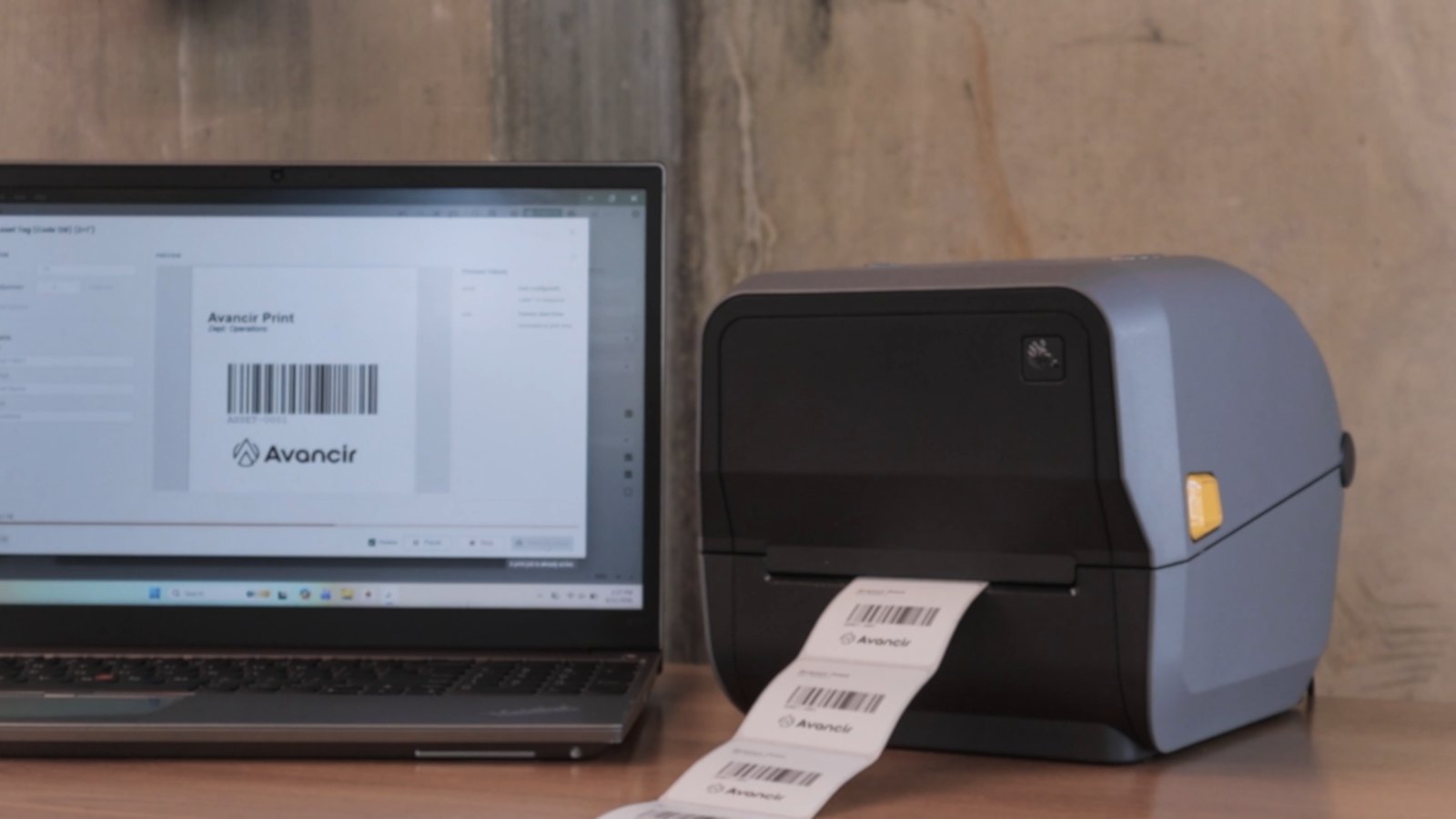
A look at the full workflow, from a label on the canvas to a printed strip coming off a connected printer.
Build a label from a blank canvas with text, fields and a barcode.
Start from a saved template, map spreadsheet columns to fields, and add RFID encoding.
Configure EPC format, encoding length, verification and failure handling.
Set up a single label, configure a serial number, and send it to the printer.
Select rows from an imported spreadsheet and run a batch with live print progress.
Adjust darkness, speed, print mode and media type without leaving the application.
Avancir Print supports everyday labeling workflows, from inventory and asset identification to retail product labels and RFID tag encoding. Whether your team is printing a small set of labels or working through larger spreadsheet-driven batches, you can create reusable templates that align with your existing data and printing processes.
Create labels for SKUs, bins, cartons, pallets, inventory items, and other records managed through Excel or CSV files.
Design barcode, QR code, and RFID labels for product identification, retail inventory, item-level tracking, and store operations.
Print identification labels for equipment, tools, devices, containers, returnable items, and other tracked assets.
Add RFID Capabilities for workflows that require both printed label information and encoded RFID data.
Create barcode labels for inventory, shipping, products, locations, and other operational identification requirements.
Support compatible RFID printing and encoding workflows for events, race timing, and other high-volume identification applications.
Build repeatable templates for the everyday identification and labeling tasks that help keep operations organized.
Create barcode, QR code, or RFID labels for inbound and outbound shipments, package identification, receiving workflows, and shipment verification.
How Avancir Print Works
Get started with the core Avancir Print application, select the number of computers that need a license, and add RFID capabilities or configuration services only when your workflow requires them.
Purchase a one-year subscription to the core application, including barcode, QR code, and standard label design and printing functionality.
After purchase, you will receive your product information, license details, and Avancir Print download information.
Install the desktop application directly on the computer that will use the license. Avancir Print is a desktop application rather than a web-based platform.
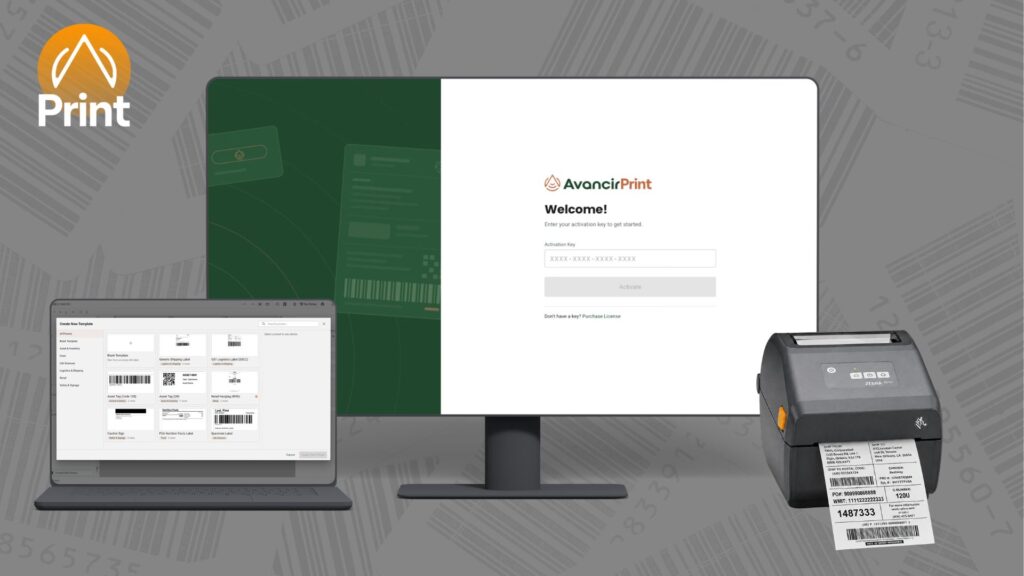
Enter your valid license key when the application starts to activate the software and access your licensed functionality.
Create templates, import Excel or CSV data, connect compatible printers, and begin printing. If RFID Capabilities are enabled, compatible RFID encoding workflows can also be supported.
Avancir Print periodically validates the software license. An active subscription and valid license are required to continue using the application.
What Makes Avancir Print Different
Avancir Print gives teams the tools to design and manage their own labeling workflows without adding unnecessary complexity.
Install the application, activate your license, and begin designing and printing using familiar Excel and CSV-based workflows.
Licenses are based on the number of computers running Avancir Print, not the number of printers. Connect unlimited compatible printers from each licensed workstation.
Avancir Print was built by RFID and barcode experts around the label printing features teams use most, with RFID capabilities and configuration services available as needed.
How It Compares
See how Avancir Print offers a simpler approach to label design, printing, and RFID encoding compared with traditional label printing software.
Per workstation, volume tiered. Unlimited compatible printers per licensed workstation.
Per workstation, single user.
Excel and CSV, auto mapped with live preview.
Excel and CSV, basic.
Optional add-on.
Requires a higher-tier edition.
Optional add-on.
Requires a higher-tier edition.
Standard support included.
Standard for a limited term, premium paid.
One-year recurring.
One, three or five-year agreements.
Printer Compatibility
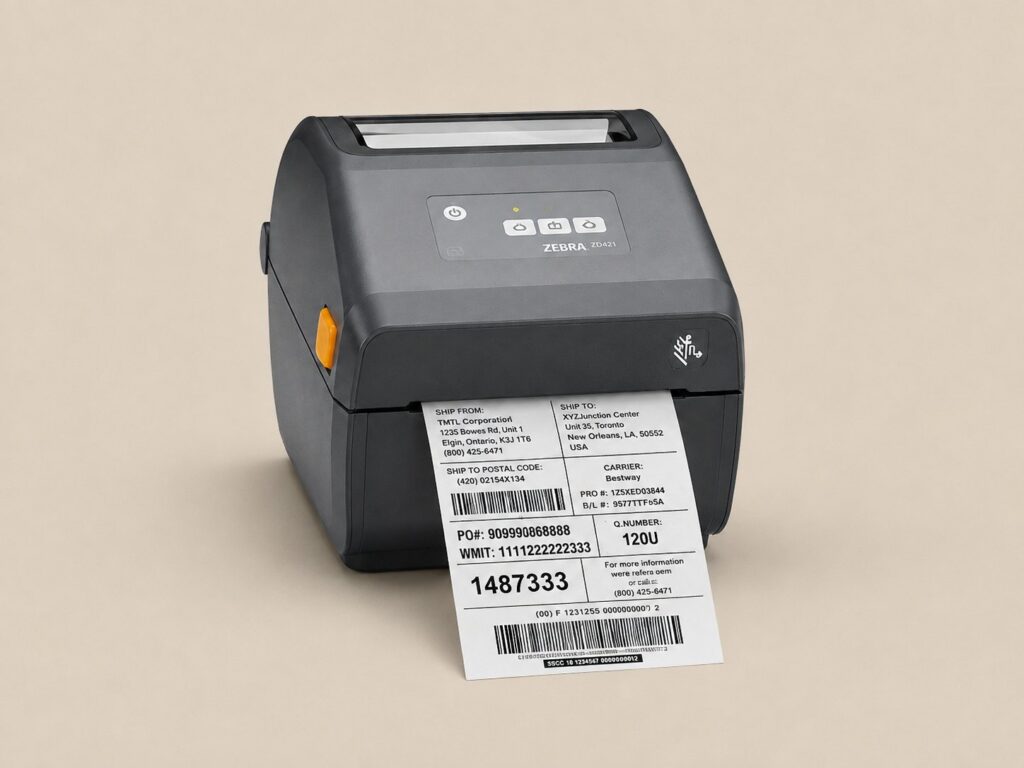
Avancir Print currently supports select Zebra industrial and desktop printers, with additional printer support planned for future releases.
Printer, label media, and RFID requirements should be confirmed before purchase to ensure the equipment is compatible with the intended workflow.
Add Printer Configuration Services at check out for additional help setting up and configuring a compatible printer for your Avancir Print workflow.
Resources
Learn how GS1 barcode printing and RFID encoding work together, including SGTIN-96, EPC encoding, verification, and common label mistakes.
Follow 6 RFID tag placement and label application best practices to improve reliable reads, avoid damaged inlays, and account for metal and liquids.
Explore RFID printer capabilities, important features, and considerations for choosing equipment that fits your application.
Frequently Asked Questions
Avancir Print is a standalone desktop application for designing and printing barcode, QR code, and other labels. RFID Capabilities can be added when a workflow also requires RFID tag encoding.
You can purchase Avancir Print directly from Atlas RFID by selecting your license quantity, choosing whether to add RFID Capabilities, and completing checkout. Click here to purchase.
You can also submit a contact form to get help before purchasing. Our team can help confirm your printer compatibility, answer workflow questions, and discuss whether RFID Capabilities or Printer Configuration Services are needed for your setup.
Yes. Excel and CSV files can be imported and mapped to label fields, allowing teams to print individual labels or larger batches without manually re-entering data.
Avancir Print is licensed by workstation. Each computer running the application requires a license, while each licensed workstation can connect to unlimited compatible printers.
Yes. If your needs change, Avancir Print can be removed from one workstation and installed and activated on another, provided the license is no longer being used on the original computer.
Yes. The core application supports barcode, QR code, and standard label printing. Add RFID Capabilities when compatible RFID tag encoding is also required.
Avancir Print supports select compatible printers. Existing labels or RFID media may be used when the printer, media, and intended workflow are compatible.
RFID workflows should be reviewed to confirm that the printer, RFID media, and required encoding format are supported.
Yes. Avancir Print is a standalone product and does not require an Avancir RFID Software subscription.
Avancir Print is a desktop application that is downloaded and installed directly on a computer. A valid license key is required to activate and use the software.
Create repeatable barcode, QR code, and RFID labeling workflows with a desktop application built around the tools your team needs.
We use cookies and similar technologies to keep our site running, understand how visitors use it and improve our content. Some tools collect usage statistics or record page interactions. You can accept, reject or manage your preferences at any time.

Manage your cookie preferences below:
Essential cookies enable basic functions and are necessary for the proper function of the website.
Google reCAPTCHA protects our forms from spam and abuse. It is required for forms to work.
Service URL: policies.google.com (opens in a new window)
Statistics cookies collect information anonymously. This information helps us understand how visitors use our website.
Google Analytics collects anonymous statistics about how visitors use the site, such as pages viewed and time on site.
Service URL: policies.google.com (opens in a new window)
Hotjar collects anonymized usage statistics and feedback to help us improve the site experience.
Service URL: www.hotjar.com (opens in a new window)
HubSpot tracks visits and form activity so we can respond to inquiries and understand which content is useful.
Service URL: legal.hubspot.com (opens in a new window)
Microsoft Clarity records anonymized page interactions such as scrolling and clicks to help us understand how visitors use the site.
Service URL: privacy.microsoft.com (opens in a new window)
Marketing cookies are used to follow visitors to websites. The intention is to show ads that are relevant and engaging to the individual user.
Microsoft Advertising tracks visits from Microsoft and Bing ads to measure ad performance.
Service URL: privacy.microsoft.com (opens in a new window)
You can find more information in our Cookie Policy and Privacy Policy.
Adding {{itemName}} to cart
Added {{itemName}} to cart